Getting Started
Float in 10 steps. The first three get you up and running; the rest show off what the panel can actually do.
macOS 11+ · Apple Silicon · Free 14-day trial · No credit card
Download and install
Download the latest .dmg from GitHub Releases. Open the DMG and drag Float into your Applications folder. Float is signed and notarized by Apple, so no Terminal gymnastics — just drag-and-drop, then launch.
Requires macOS 11 (Big Sur) or later on Apple Silicon (M1, M2, M3, or M4). Intel Macs are not currently supported.
Open the panel from the menu bar
Float lives in your menu bar as a small icon. Click it to open the panel; click anywhere outside the panel or press Escape to dismiss it. The panel floats above any app, including fullscreen Spaces, so you never have to leave your work to find a file.
Set a global hotkey in Settings → Shortcuts to summon the panel from anywhere — fullscreen apps included.
Activate your license (if you bought one)
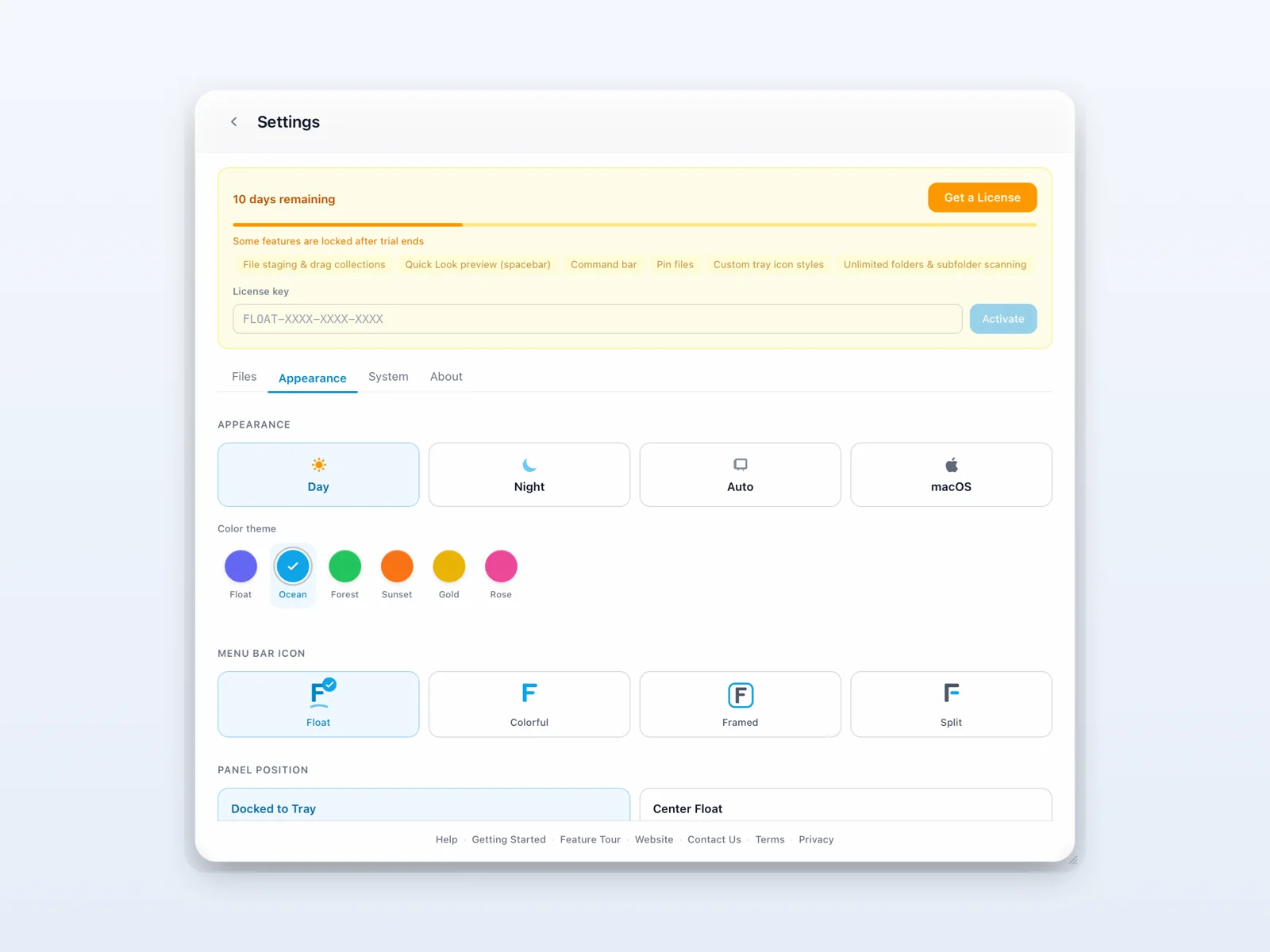
Bought Float? Here's how to unlock it — it takes about ten seconds:
- Open the panel and click the gear icon in the top-right to open Settings.
- The License card is the very first thing at the top — you can't miss it.
- Paste your license key (Lemon Squeezy emailed it to you right after purchase) into the License key field.
- Click Activate.
No license yet? Skip this step. Float gives you a free 14-day trial of every feature — no key, no account, no credit card needed. Buy a license any time during or after the trial. One license activates Float on up to 3 Macs, and you can swap machines anytime by clicking Deactivate on the old one to free a slot.
Pick which folders Float watches
Open Settings → Folders. Click Add Folder and choose any folder under your home directory — Desktop, Downloads, Screenshots, a project folder, anything. You can watch as many folders as you want, and Float merges them all into one panel sorted by recency.
For each folder, toggle Include subfolders if you want files inside nested directories to appear too.
New downloads / new screenshots / files saved by other apps appear in Float within a second of being written — no refresh needed.
Browse, open, and preview
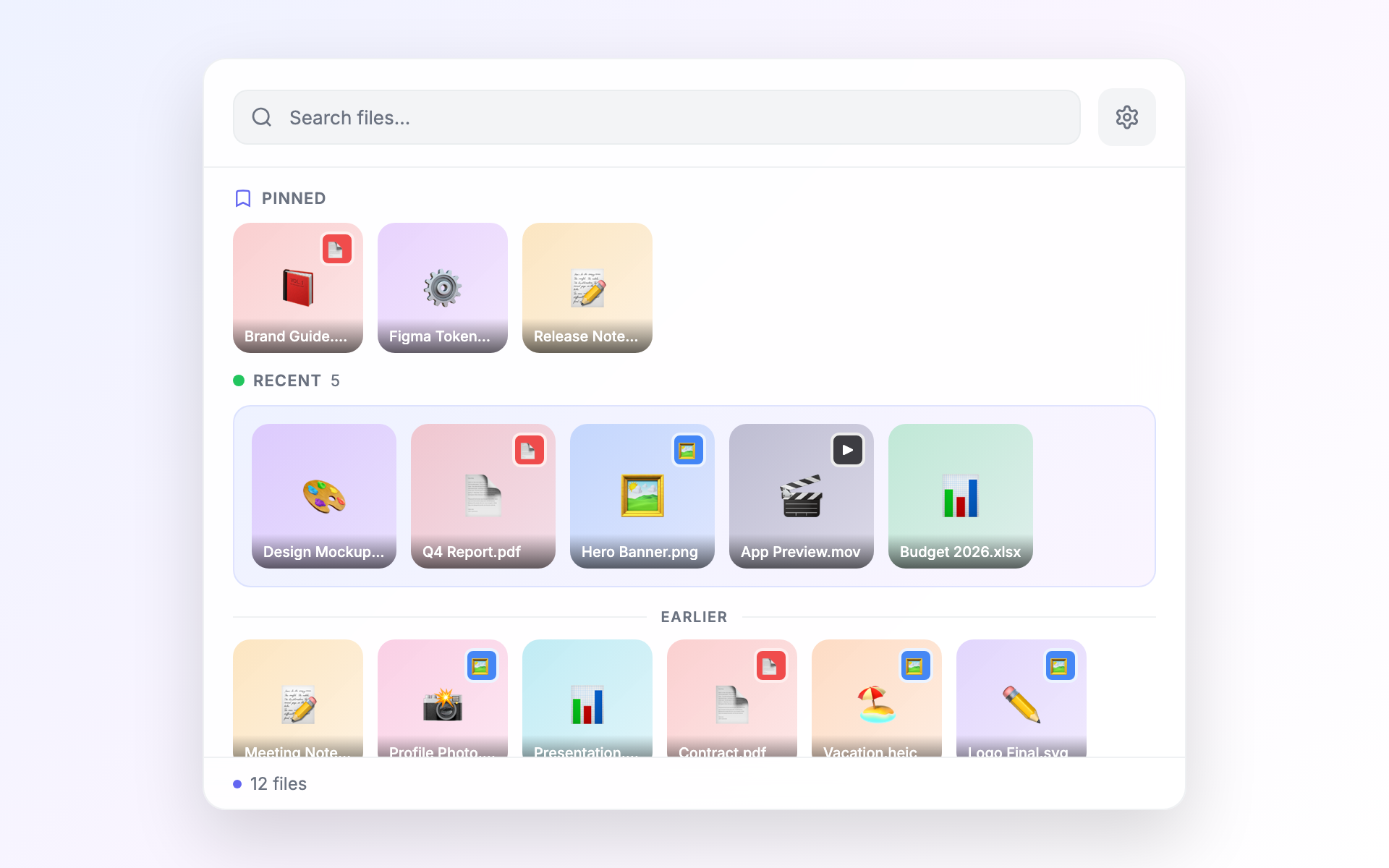
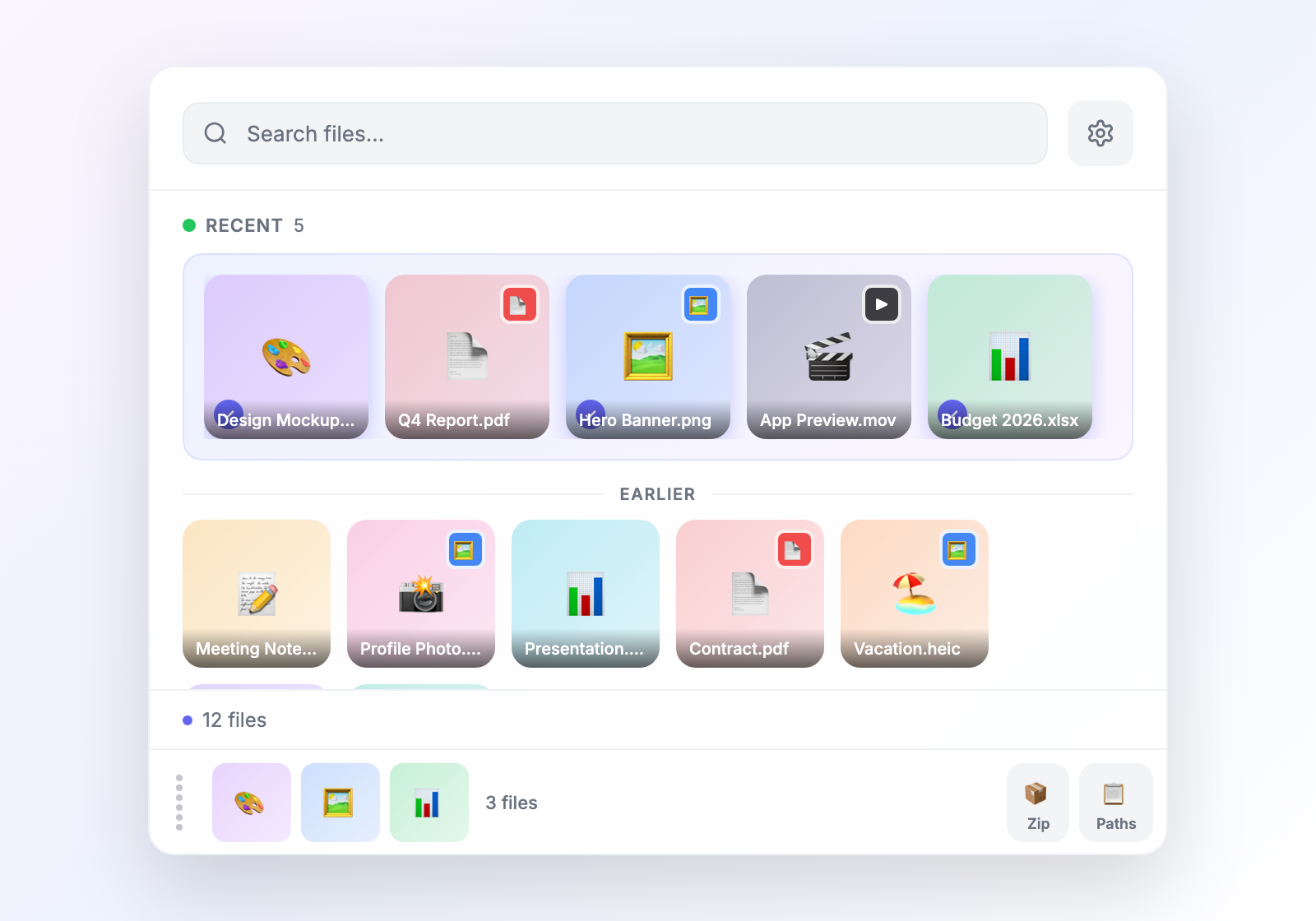
Files appear as visual thumbnails sorted by modification date, with sections for Pinned, Recent, and Earlier.
- Click a file to open it in its default app.
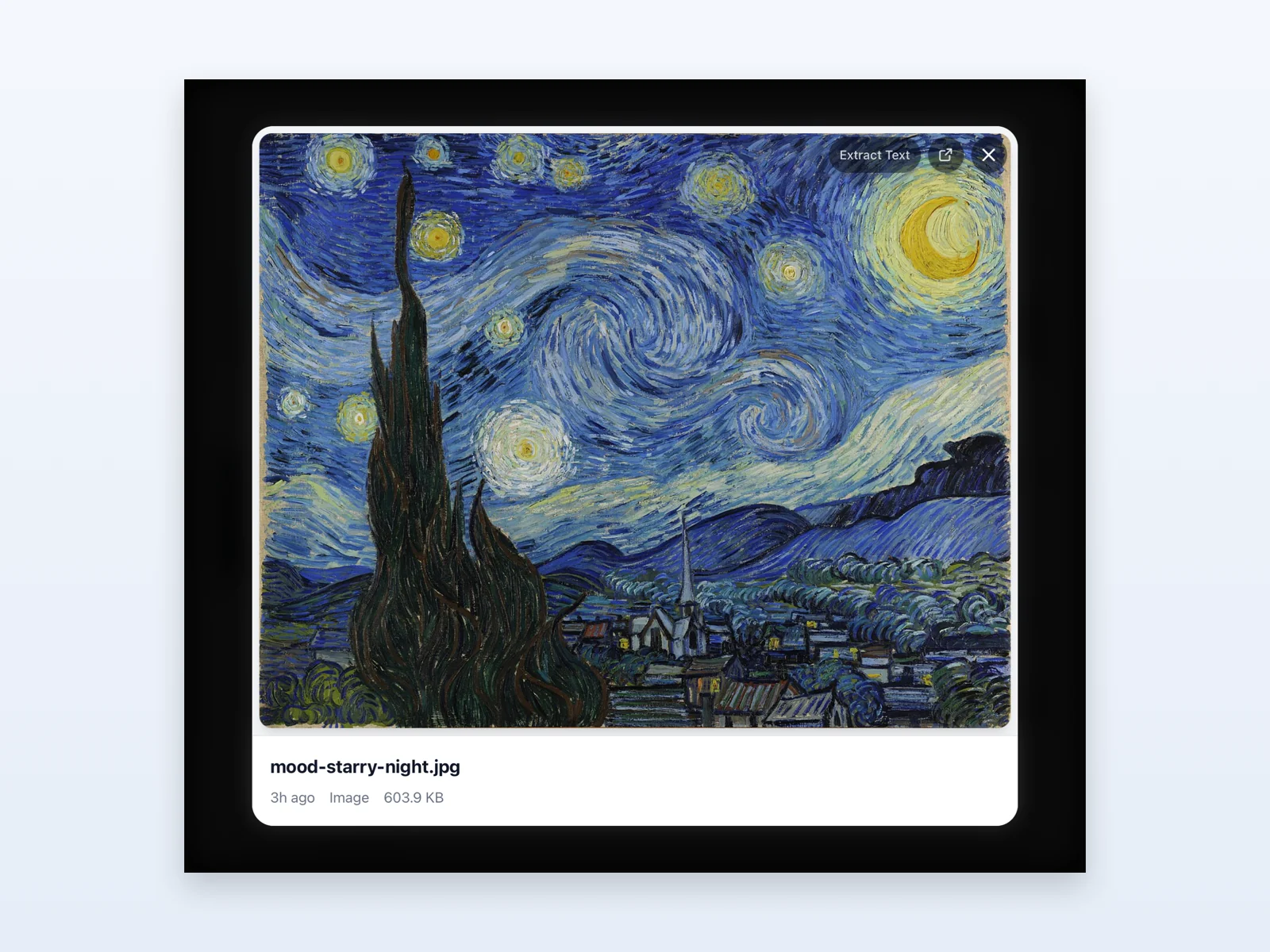
- Press Enter to open it in Float's inline preview — works for images, PDFs, documents, and more. The preview includes an Extract Text button (see step 9).
- Press Space to open the file in macOS Quick Look instead.
- Right-click any file for Open, Reveal in Finder, Copy Path, Stage, or Move to Trash.
Pin the files you reach for most
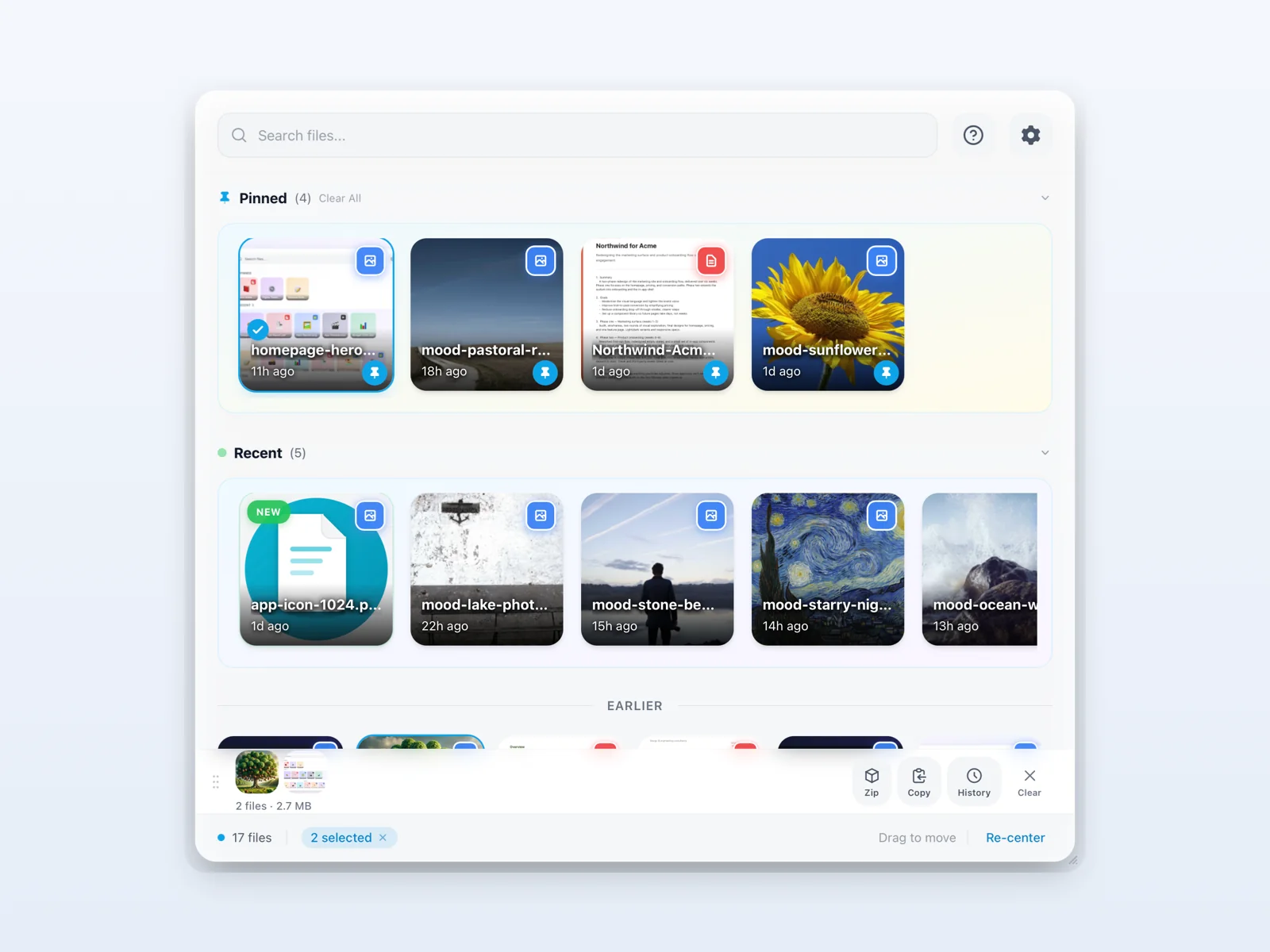
Hover over any file, then click the pin icon in its bottom corner. Pinned files get their own Pinned section at the top of the panel and stay there no matter how old the file gets or which folder it's in. Click pin again to unpin.
Stage a batch and drag the whole stack
Need to attach multiple files at once? Click files to add them to the staging bar at the bottom — files can come from different watched folders. Once staged:
- Drag the stack into any app to drop them all at once.
- Zip them into a single archive on your clipboard.
- Copy them all to your clipboard.
- History shows your recent staging sessions in case you want to bring one back.
Run anything with the Command Bar
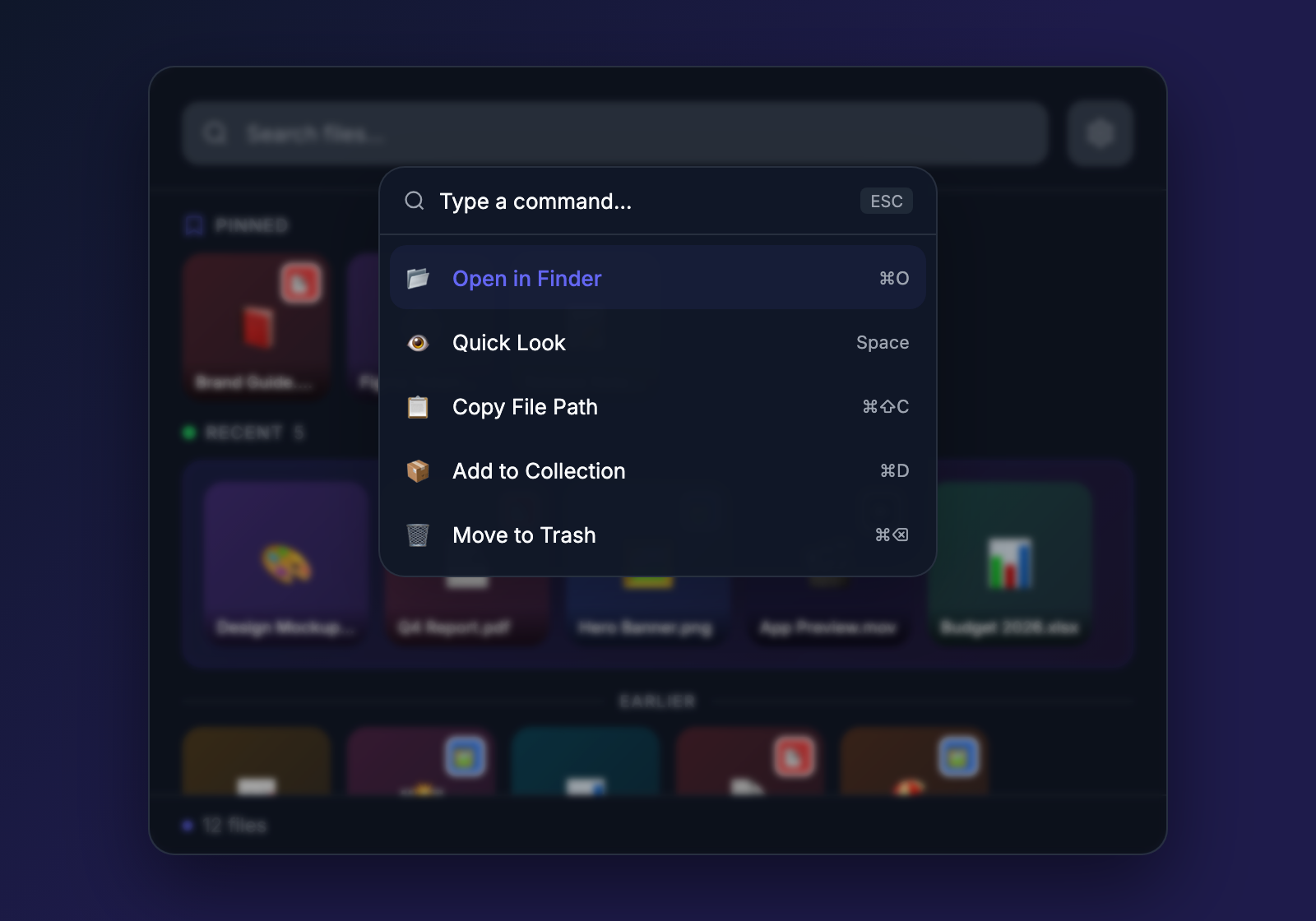
Press ⌘K anywhere in the panel to open the Command Bar. Type to search files across every watched folder, or to run actions like Toggle Theme, Copy File Path, Copy Staged Paths, Open Settings, and more. Keyboard-only flow, never touch the mouse.
Pull text out of images and PDFs
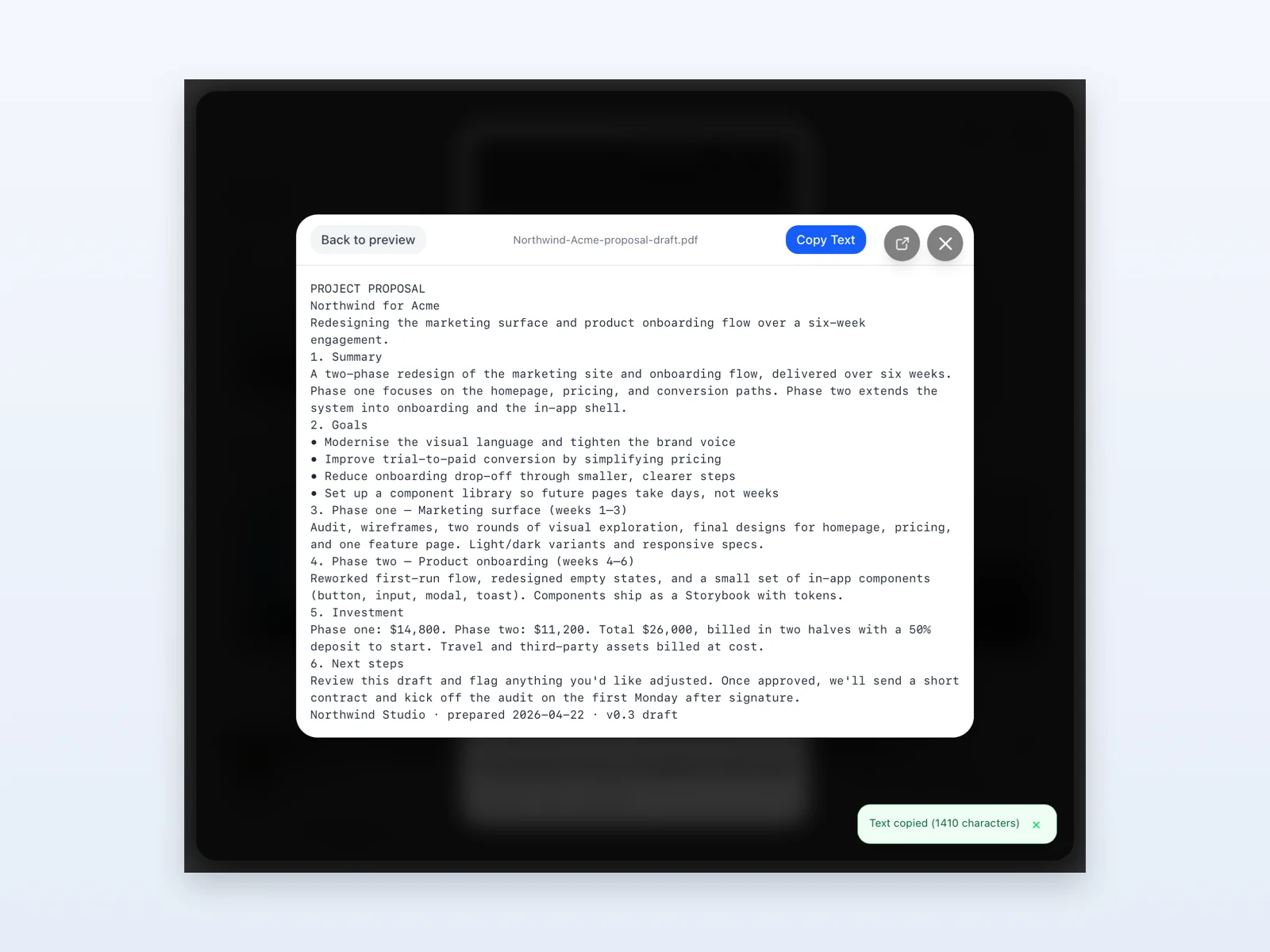
Select any image, screenshot, or PDF and press Enter to open it in Float's preview. Click Extract Text in the top-right of the preview, wait a second or two, and the extracted text appears with a Copy Text button. The text lands on your clipboard ready to paste — no separate OCR app needed.
Make it yours
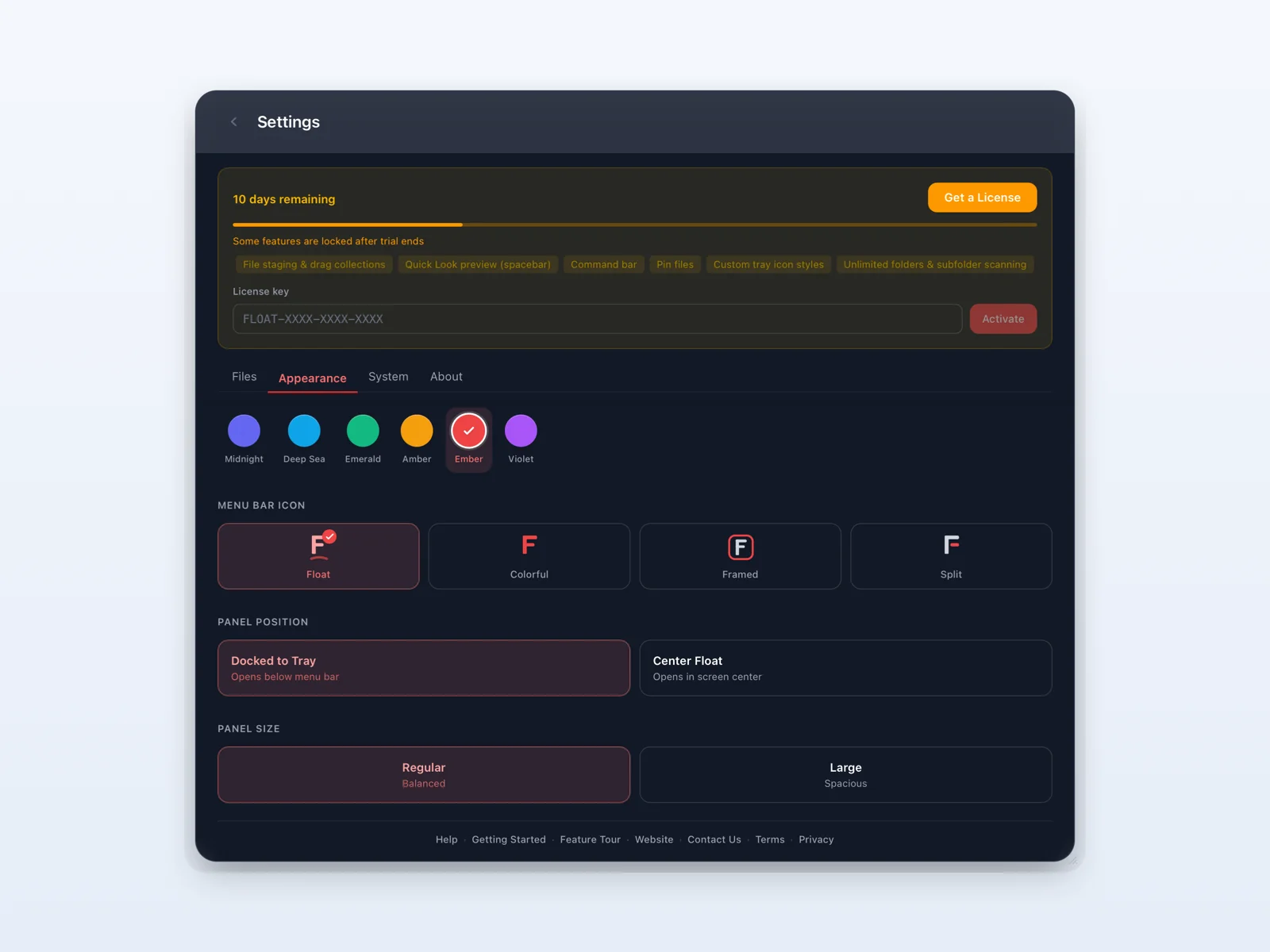
In Settings → Appearance, pick from 12 themes (six day, six night) that auto-sync with macOS dark mode. In Menu Bar Icon, choose between Float, Colorful, Framed, or Split tray icon styles. Set a global hotkey in Shortcuts. Switch the panel position between docked-to-tray and center-floating. Resize the panel by dragging its bottom-right corner.
Float remembers all your customizations across restarts — and they're per-machine, so each Mac can have its own setup.
Common workflows
What Float actually saves you when you reach for it during the day.
Drop files into any fullscreen app — verified
Terminal, browser, Figma, an AI coding session — once you're in fullscreen, the rest of your Mac becomes hard to reach. Summon Float over the top, see the file you're about to share, drag it into the fullscreen app, dismiss the panel. You're exactly where you were. Visual confirmation means you never AirDrop the wrong revision.
Drag a screenshot into web messaging
Press ⌘⇧4 to grab a screenshot — it lands on your Desktop and Float picks it up instantly. Drag the thumbnail directly into the WhatsApp Web compose box, Slack, Messenger, Discord, or any browser message field. The image lands inline as image data, not as a file attachment — exactly how those apps want it.
Paste an iPhone screenshot anywhere
AirDropped a screenshot from your iPhone? It arrives as a .heic file that most web apps can't render. Right-click it in Float → Copy as PNG, then ⌘V into WhatsApp Web, Slack, Mail, or any compose field. Float converts the HEIC to PNG image data on the clipboard so it pastes inline. Works the same for JPEG, WebP, HEIC, TIFF, BMP, and GIF.
Drop a fresh download into Slack or Mail
A file just landed in ~/Downloads. Hit your global hotkey, drag the file straight into the compose window. No ⌘⇧G, no scrolling Finder.
Stay in fullscreen Figma (or VS Code, or the browser)
Float floats above any app, including fullscreen Spaces. Summon the panel, drag the file into the fullscreen app, dismiss the panel. You never leave your work.
Send a batch as a single zip
Click files from different watched folders to stage them. Click Zip in the staging bar — a single archive lands on your clipboard ready to drop into Mail.
Pull text out of an image or PDF
Select the file, press Enter to open the preview, click Extract Text. The text is on your clipboard in a couple of seconds — no external OCR app.
Find the file you can't quite name
Visual thumbnails sorted by recency. Scroll the panel, recognize the file, drag it where it goes. You never have to remember the filename.
How do you use Float?
We read every message and the best workflows end up here. Tell us your favorite — or what you wish Float could do — and we'll factor it into what gets built next.
Have a question?